
Assisting projects across your apps
Finishing your first week w/ Littlebird
Let's begin using the context we've pulled from apps like your email, notebooks, calendar, and more and utilizing that information to assist us with completing projects.
We like to think of prompting in 4 levels:
Level 1: Simple recall & summary (quick recap of basics)
Level 2: Combining commands (find X, then do Y)
Level 3: Strategic planning (brainstorm, outline, plan)
Level 4: Shaping the output (requesting tables, specific tones, etc.)
To start, you can begin using Littlebird to recall emails or files via our chat. With no additional effort, Littlebird can pull information from your other apps:
What did Lisa request me to review during our Monday call? Give me the context and provide me relevant links.
Recalling information is the most straightforward way to get value from Littlebird's context, but the real power comes from using that context in Chat to generate documents, build plans, and create content.
Part 1: Your project partner
Many people stop at asking AI simple questions. But Littlebird becomes most useful when you treat it like a collaborative colleague for deep work or getting started on something.
How to do it
Instead of a single prompt, use a multi-step workflow to build complex plans from scratch. Littlebird remembers the conversation history and your context, allowing you to refine and iterate.
Try this 4-step sequence to turn a vague goal into a concrete plan:
Define the Goal: Start broad.
Help me think through the launch plan for [Project Name].Brainstorm & Refine: Ask for specific milestones.
That's a good start. What are the key milestones we'd need to hit to achieve that?Build the Structure: Turn the chat into a document.
Turn those milestones into a formal project plan outline with phases and timelines.Execute Immediately: Use the plan to generate content.
Based on Phase 1 of that plan, draft an internal announcement email to the team.
Stop prepping and start doing.
Use Littlebird to break through the initial friction of any task.
Instead of getting stuck figuring out how to start, ask Littlebird to take a first pass or handle the setup, like generating an outline or a checklist.
Save your mental energy for the actual work, not the setup.
You likely already have some projects in motion. Use our Chat Library so Littlebird can help keep you organized against those projects.
Try our Daily + Weekly Priority Planner prompt:
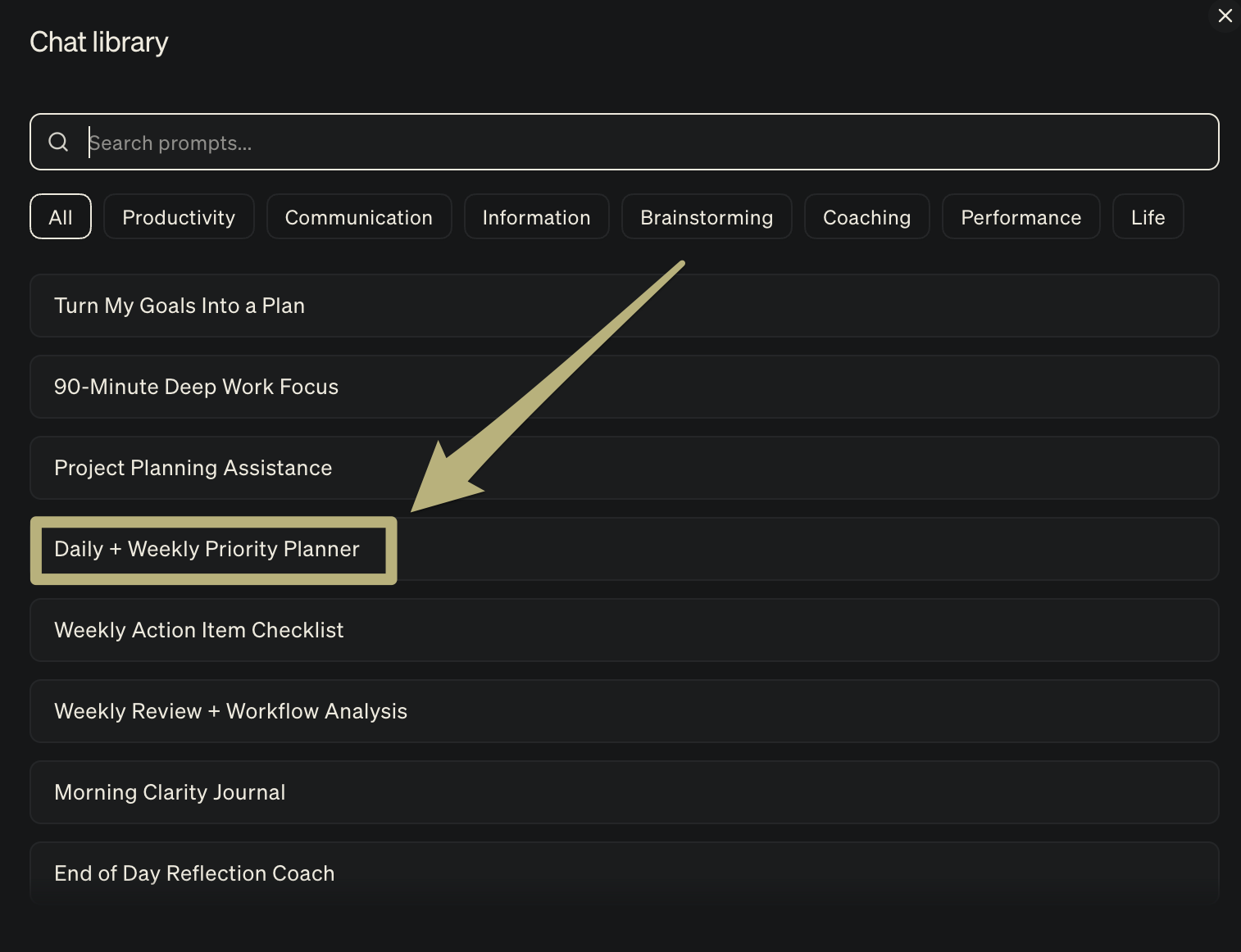
This prompt will build a list of tasks for today and this week, and outline your most important high-level priorities.
You can then reply in the thread to have Littlebird dive deeper into one of the tasks, try asking for instructions or steps to complete one of the listed tasks.
You can also apply steps 3 and 4 from the previous sequence to one of the tasks or priorities here.
Outcomes are typically achieved through a set of Projects and underlying Tasks designed to help deliver them.
Use multiple chats in Littlebird to stay organized and easily complete tasks.
Create a Chat focused on your higher-level outcomes and a list of underlying projects
Create new chats focused on completing each underlying project
Use Case: Managing OKRs (objectives and key results)
One of our favorite team workflows is using separate Chat threads to manage work at different levels, from high-level strategy to deep execution.
The strategy thread:
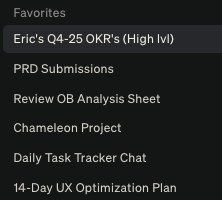
We create a dedicated Chat thread for each Quarter's OKRs. We use this space to brainstorm with Littlebird about our high-level goals, identify the metrics that best reflect success, and define how to measure them. This serves as our high-level tracker.
The deep work thread:
Once the goals are set, we spin up separate, specific Chats for each individual project. This is where we get into the weeds, like executing tasks, drafting content, and completing the detailed steps required to hit those high-level objectives.
Part 2: Automate reports with Routines
Routines let Littlebird help you before you even ask, scheduling prompts that run automatically and delivering insights exactly when you need them.
How to set it up
Go to Routines in the sidebar.
Click + New Routine in the top right
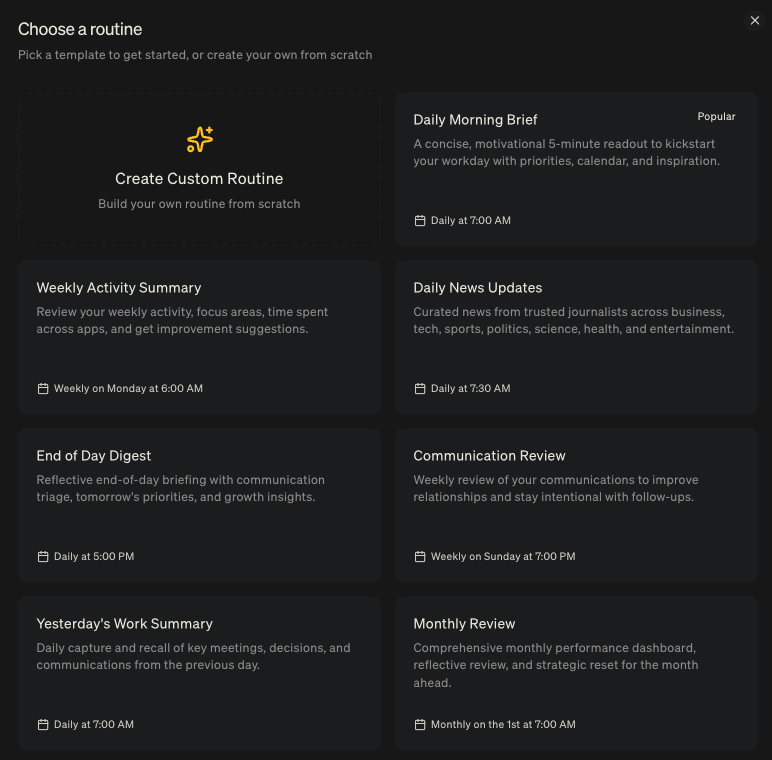
You can choose to create your own custom routine or choose one of the default options provided
💡 Use Case: The weekly activity summary
Because Littlebird has been watching you work all week, it is uniquely qualified to help you spot patterns you might miss. Try setting up the Weekly Activity Summary routine from the template options.
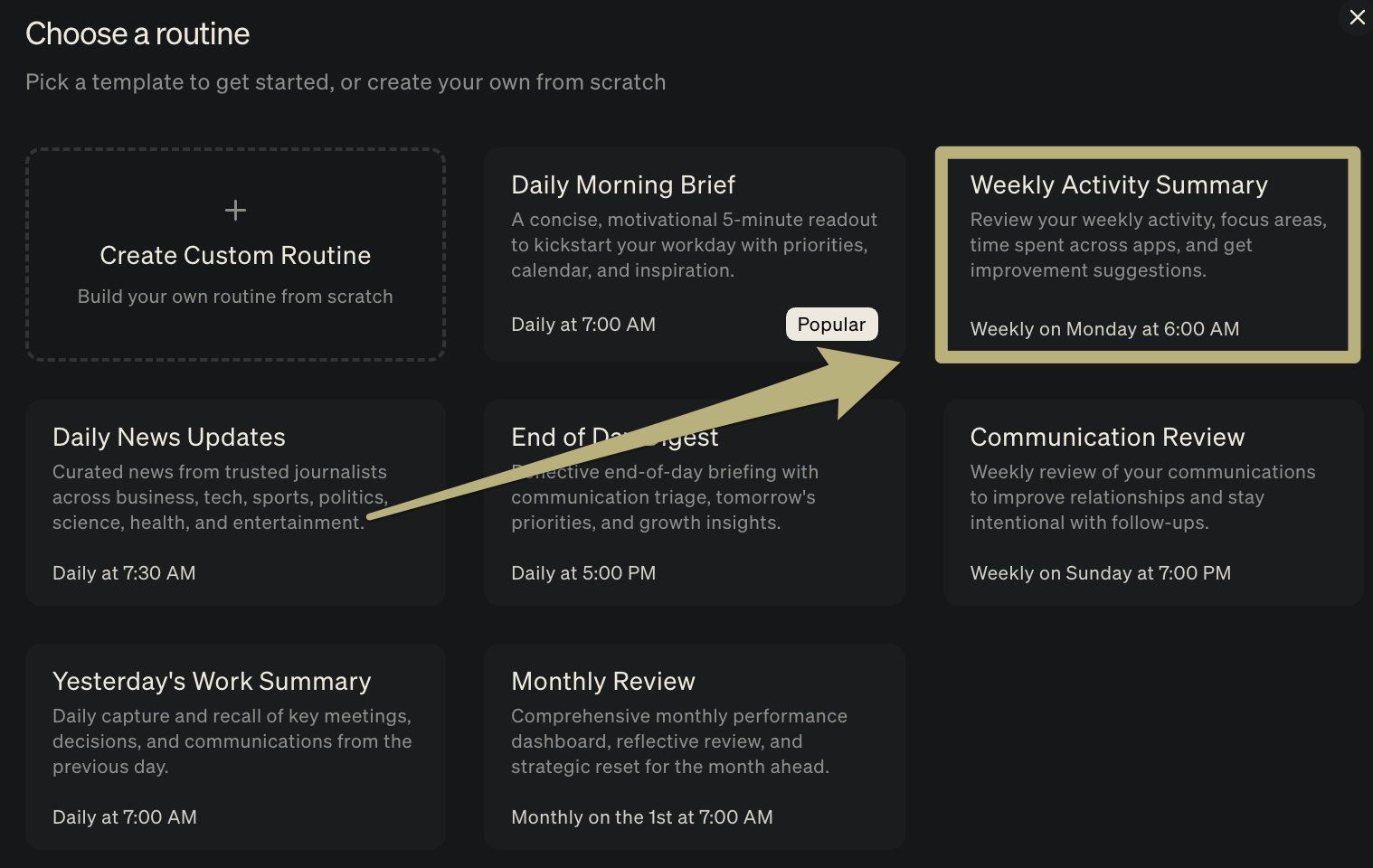
Use this routine to help you review what you’ve done over the past week and identify opportunities to streamline your workflow or improve how you work.
We find that Routines and Chats serve two very different purposes in our day-to-day workflow:
Routines are for ingesting information:
We love using the mobile app to check our Routines while on the go. Whether it's a daily briefing or a digest of yesterday's decisions, Routines are perfect for quickly consuming updates without typing or prompting.Chats are for doing the work:
When we need to get hands-on: brainstorming, refining ideas, or completing complex tasks, we switch to Chat. This is where the back-and-forth collaboration happens to get the best possible output.
Part 3: Littlebird on the go
Your work doesn't always happen at a desk. The Littlebird mobile app ensures your "second brain" travels with you, acting as a window into all the context you've built on your computer.
It's important to note that the Littlebird mobile app acts as a portal to your desktop context.
While Littlebird captures your work on your computer, it does not record or capture activity on your phone screens today. (We are working towards allowing this on Android!)
How to get it
Download Littlebird for iOS or Android.
💡 Use Case: consumption vs. creation
We find the mobile app is perfect for ingesting information on the fly, while the desktop app is best for deep, interactive work.
Read on the go: Use the mobile app to check your Routines, like reading your Daily Briefing while grabbing coffee or reviewing your Weekly Activity Summary on your commute home.
Instant recall: Need to remember a stat from a PDF you were reading on your desktop yesterday? Ask Littlebird a quick question from your phone to access that memory instantly.
Last-minute prep: Walking into a meeting? Open the app on your phone and ask Littlebird for a Meeting Prep summary so you have your talking points ready the moment you sit down.