
Feature spotlight : Hummingbird
Hummingbird: Your instant AI overlay
Hummingbird, a faster way to use Littlebird without leaving what you’re working on.
Note : Hummingbird is currently only available on macOS and is not on Windows.
How to enable Hummingbird
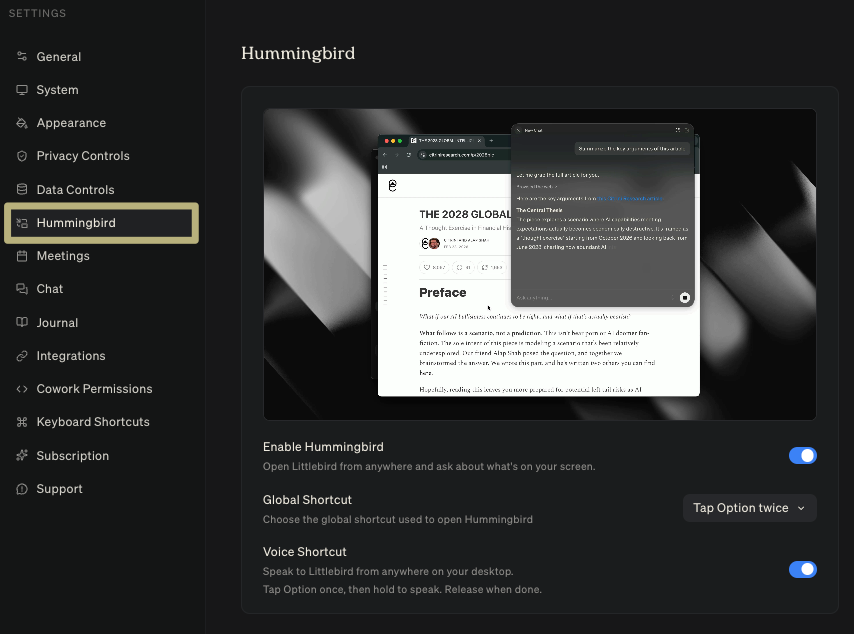
Hummingbird is available to all Littlebird users. To turn it on:
Open Littlebird and navigate to Settings > Hummingbird
Toggle on Enable Hummingbird
That's all it takes.
How to use it
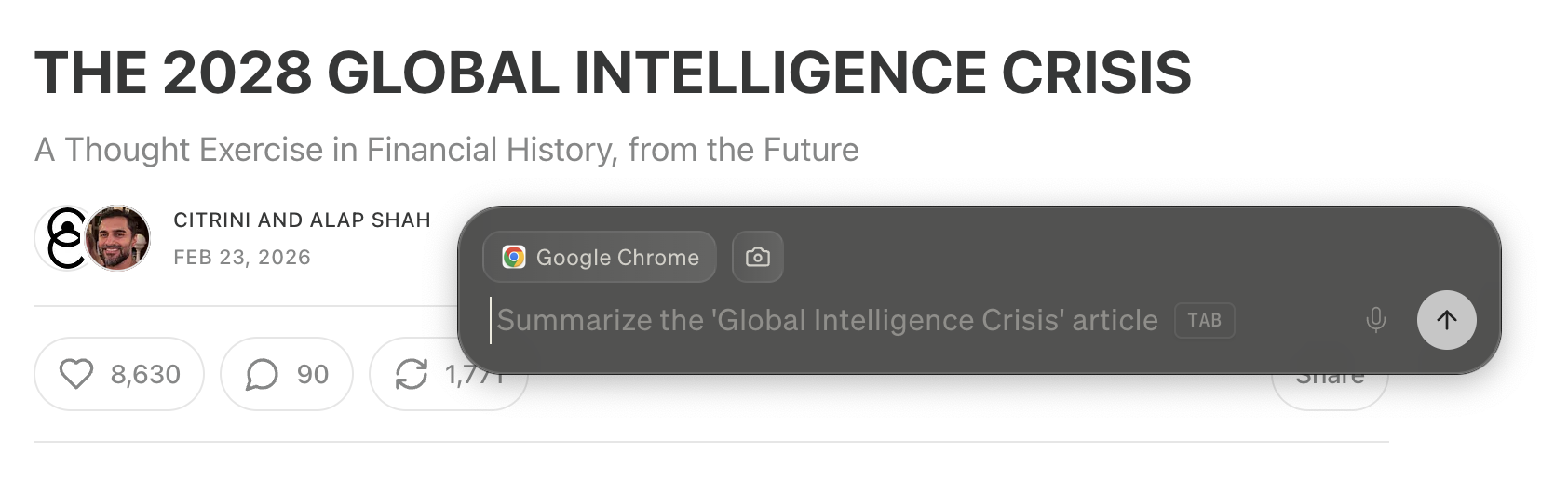
Double-tap the Option key from anywhere on your Mac. The Hummingbird panel will appear over your active window.
When you're done, press Option + Option again or click away to close the panel.
What Hummingbird can see
When you open Hummingbird, it automatically picks up on the context around you:
Your active screen: whatever app or window is in front of you
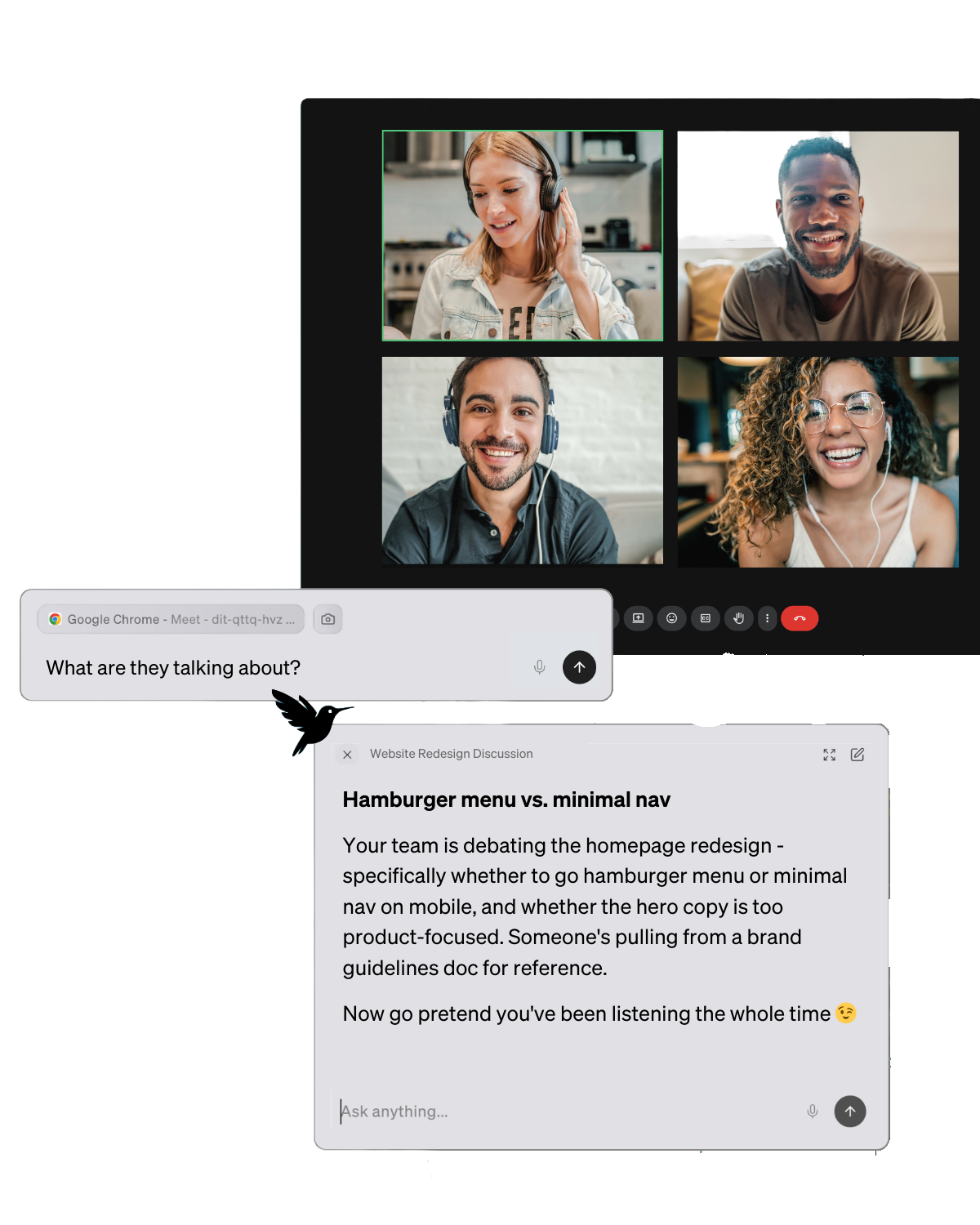
Your live meeting transcript: if Meeting Notes is running, Hummingbird can tap into the conversation in real time
This means you can ask questions without ever describing what you're looking at. Littlebird already knows.
Important : Hummingbird only sees what's on screen when you ask it to, so your main app and website exclusions don't apply.
Key Use Cases
Real-time chat during meetings
If you have a live Meeting Notes session running, Hummingbird becomes your in-meeting co-pilot.
To activate this function, after opening Hummingbird:
Click the meeting button in Hummingbird and the circular icon will turn red, this connects Hummingbird to your active session
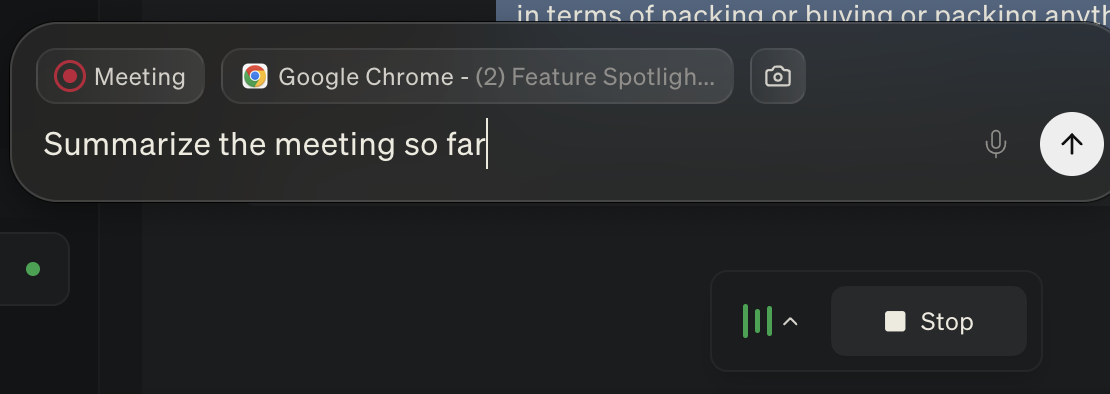
Ask questions mid-call without breaking your focus:
"Summarize the meeting so far"
"What action items have come up?"
"What did [Name] say about the timeline?"
No tab-switching. No interruptions. Just the answer.
Chat specific to what you're looking at
Hummingbird reads your active window and responds to exactly what's in front of you.
Here are a few ways this plays out:
You're looking at a support ticket or long email thread.
"Draft a reply that addresses their concern and sets expectations for next steps."
It reads the full thread and writes a response grounded in what was actually said - tone, context, and all.
You're tagged in a Slack thread you haven't caught up on.
"Catch me up on this conversation and tell me what's being asked of me."
It reads the visible messages and gives you the headline so you can respond without scrolling back to the beginning.
You're about to hop on a discovery call and have the prospect's LinkedIn or website open.
"What are strong discovery questions based on what I see here?"
You're reviewing a customer's record in your CRM or support tool.
"Summarize this customer's history and suggest a good next touchpoint."
You're on a competitor's pricing or features page.
"How does this compare to what we offer?"
"What's worth flagging for the team?"
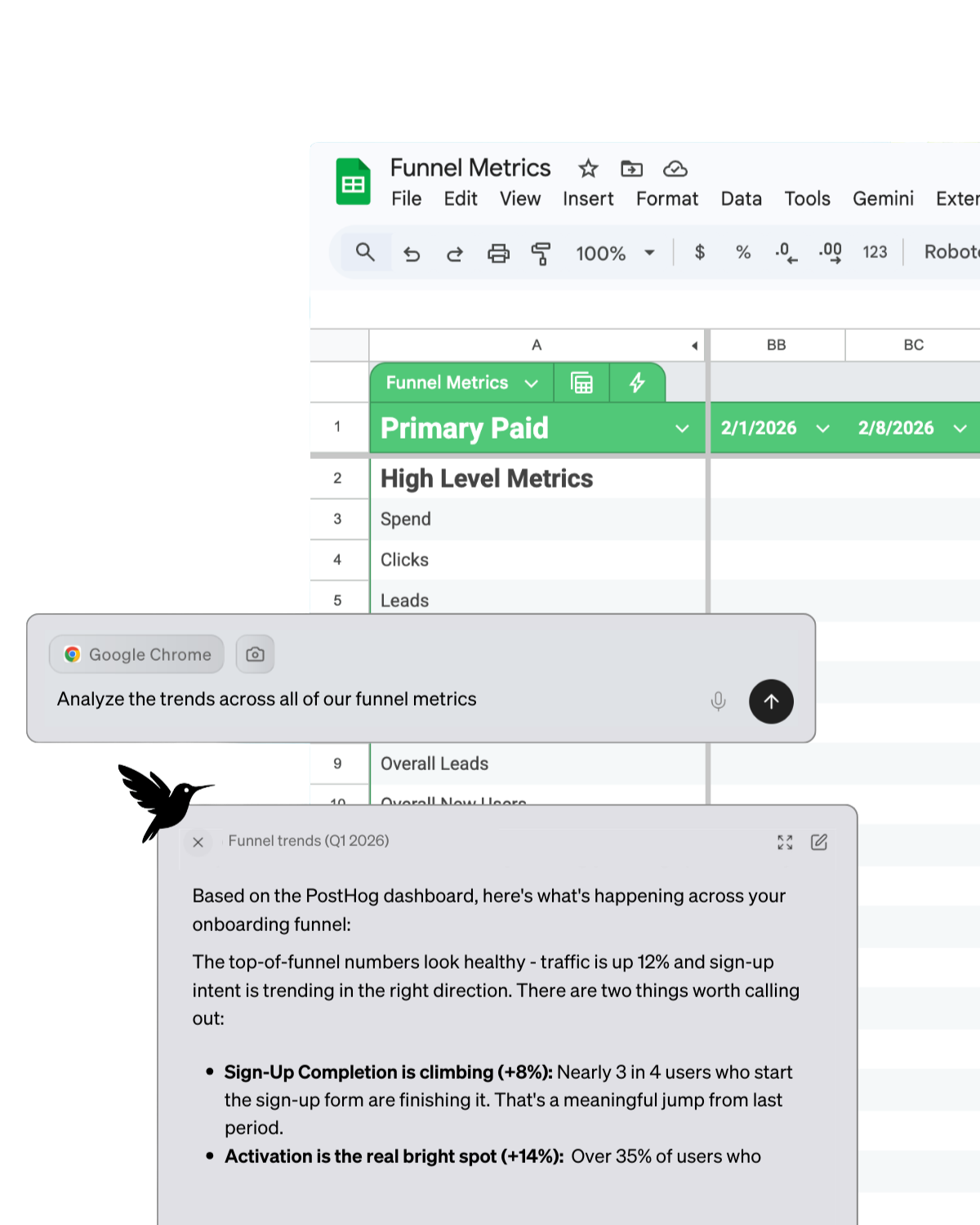
You're skimming a long document, proposal, or spec.
"What are the three most important things on this page?"
"What's missing from this?"
You're looking at an analytics dashboard or performance report.
"What's the headline story here?"
"What should I be concerned about?"
You've written a draft and want a gut-check before you send.
With your email, message, or doc open, ask:
"Is this landing the right way?" or "Make this more direct."
It reads what you've written and gives you instant, in-context feedback.
Quick access to Chat, anywhere
Sometimes you just need a fast answer without opening the full app. Hummingbird gives you access to the same Littlebird AI you know, just lighter and right where you're working:
Rephrase something before you hit send
Pull up a quick summary of recent activity
Ask a question while staying in your current workflow
Tips for getting the most out of Hummingbird
Use it during calls: if Meeting Notes is active, Hummingbird is tapped into the live conversation
While doing research: Summarize what you're reading or ask how it compares to something else you’re working on.
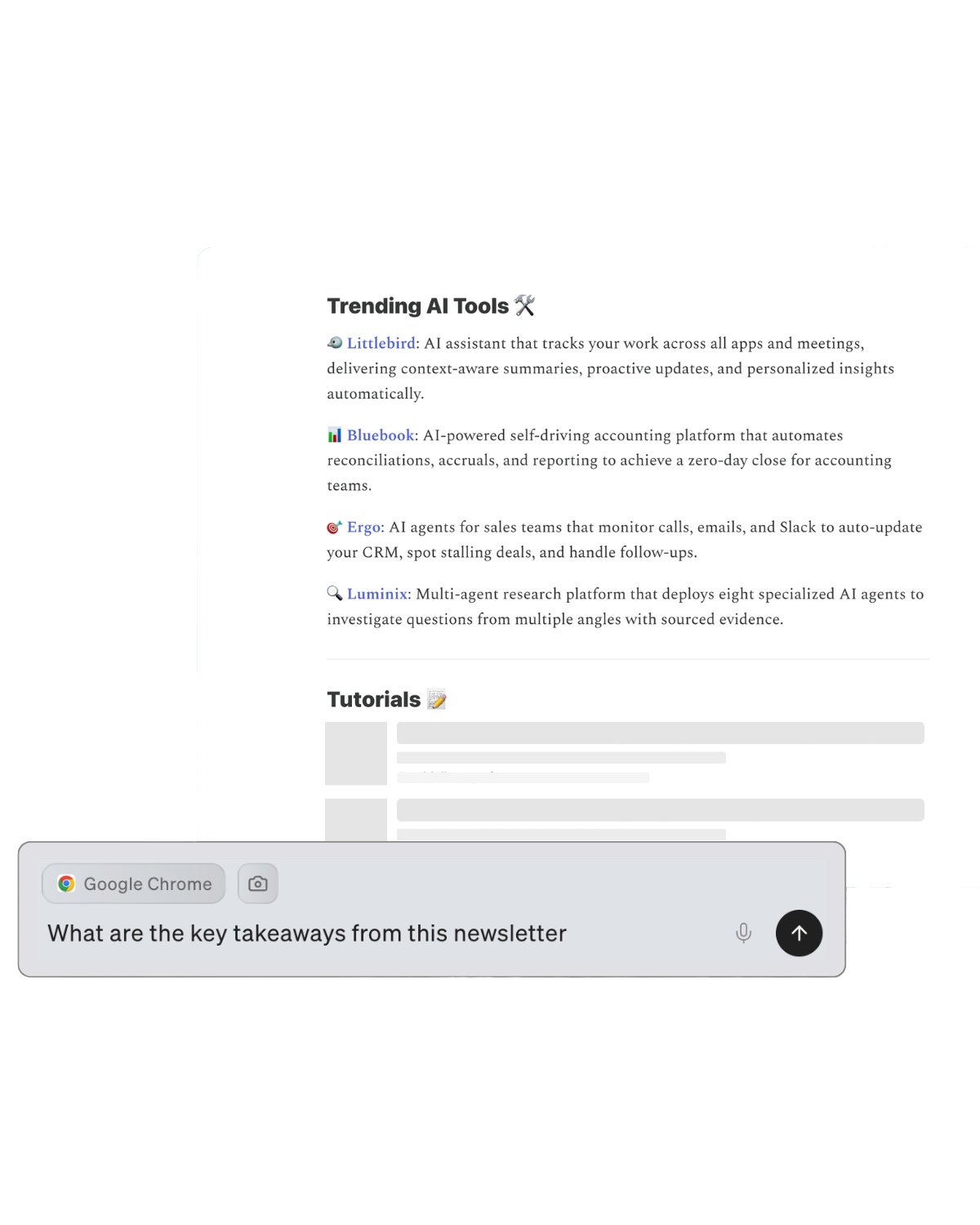
In a spreadsheet or dashboard: Ask Littlebird to explain what's driving a change, or help you write a summary of the results for your team.
Keep it focused: Hummingbird is built for quick, in-the-moment queries; for deeper dives or multi-step tasks, head into Chat
Questions or feedback?
We're always looking to improve. If something feels off or you have an idea, drop us a note at support@littlebird.ai or tap Feedback in the app.