
Introduction to Routines
What are Routines?
Most of the time, you interact with Littlebird by asking a question and pulling information when you need it. Routines flip that model.
A Routine is an automated prompt that pushes targeted information to you on a schedule you control. For example, instead of manually reviewing your calendar and notes for your daily priorities, a Routine can automatically analyze that context and deliver a briefing to you every morning at 8:30 am.
While Chat is always there to answer your on-demand questions, Routines save you from having to ask the same questions every day. Design a strategic report once, and let Littlebird deliver it to you automatically.
Ways to use Routines
Routines are perfect for any recurring information need. Most fall into two powerful categories: creating a personal briefing based on your own work, or building a custom news feed from the web. Here are a few use cases and examples to get you started.
Use case 1: The daily briefing
The goal: Get a recurring, automated summary of your own work and priorities to help you prepare for the day ahead and reflect on what you've accomplished.
Act as my personal productivity coach and assistant. I need a concise, motivational 5-minute readout to kickstart my workday. Please include the following sections:
Morning Briefing Title: Today's Date
Daily Motivation: Share a fresh motivational quote
Background Productivity: Recommend two videos with music that will help me focus
Rollovers: Summarize any tasks or to-dos carried over from yesterday, including key follow-ups. Highlight one to three wins from yesterday that I can feel good about as I start my day.
Top three Priorities: Highlight the most important priorities to work towards today and how that leads to a successful week. Include one suggested task for each priority.
Calendar Snapshot: Provide a brief overview of today's meetings and any necessary preparation.
Leadership Mindset: Describe what would deliver the outcomes below
What would make today feel successful?
Where can I show up as a leader?
What could be quickly addressed that I'm avoiding or procrastinating?
Quick Info:
One key news headline (relevant and positive) and three articles I'd be interested in that were written in the past week
Tone: Present this information in a calm and motivational manner. The goal is for me to review this in under five minutes and feel prepared and inspired for the day.
Schedule: Every weekday at 8:30 am
Value: Instead of a simple task list, you get a strategic daily briefing. It aligns your daily work with your weekly goals and helps you focus on what will truly move the needle.
Use case 2: The custom news feed (external focus)
The goal: Stop chasing information from a dozen different sources. Use Routines to scrape the web and deliver a single, consolidated feed on the topics that matter to you.
Pull the most relevant articles and tweets posted within the last 24 hours from the list of trusted journalists and publications below. Include no more than three tweets per person.
Topics/sources to monitor
Business & economy
Mohamed A. El-Erian (@elerianm)
Martin Wolf (FT)
Andrew Ross Sorkin (@andrewrsorkin)
Wall Street Journal
Financial Times
Technology
Kara Swisher (@karaswisher)
Casey Newton (@CaseyNewton)
Benedict Evans (@benedictevans)
Wired / TechCrunch / Ars Technica
Sports
ESPN
The Ringer
The Athletic
Bill Simmons (@BillSimmons)
Shams Charania (@ShamsCharania)
Adrian Wojnarowski (@wojespn)
Mina Kimes (@minakimes)
Politics & government
Maggie Haberman (@maggieNYT)
Laura Kuenssberg (@bbclaurak)
Politico
NPR
World news & international affairs
Christiane Amanpour (@amanpour)
Ian Bremmer (@ianbremmer)
BBC
Science (research & space)
Ed Yong (@edyong209)
Carl Zimmer (@carlzimmer)
Neil deGrasse Tyson (@neiltyson)
Scientific American
National Geographic
Health & medicine
Dr. Sanjay Gupta (@drsanjaygupta)
Helen Branswell (@HelenBranswell)
Laurie Garrett (@Laurie_Garrett)
Entertainment & culture
Variety
The Hollywood Reporter
Rolling Stone
Wesley Morris (@Wesley_Morris)
Mark Kermode (@KermodeMovie)
Emily Nussbaum (@emilynussbaum)
A.O. Scott (@aoscott)
Dave Itzkoff (@ditzkoff)
Instructions and formatting rules:
Focus on major developments, verified reports, or expert commentary from each source.
Include only factual, original reporting or first-hand analysis, not opinion pieces or secondary summaries.
Under each category, produce:
Full Text of Tweet or Headline of Article (1–2 sentences for articles)
For tweets, you MUST quote the full, original text of the tweet verbatim
Source(s)
Tag the journalist or publication
You MUST include a direct, permanent link (permalink) to the specific article or post. Do not link to general news homepages (e.g., bbc.com/news)
Date / Time (if available)
Context / Implication (1 sentence)
Keep writing concise but analytical — show why each story matters.
Timeframe: Limit to the past 24 hours (most recent first)
Schedule: Every weekday at 7:00 am
Value: You get a custom, niche-specific news feed delivered to you daily, ensuring you're always up-to-date without the noise of social media or generic news sites
Use case 3: Simple weekly review
The goal: To get an objective, data-driven look at how you spend your time and attention, helping you identify patterns and opportunities for improvement.
Review my activity from the past week.
What were my main areas of focus, and how much time did I spend in different applications? List the top three apps I typically have open, along with the websites I spent the most time on as well. Summarize this information for me and create a table that lists the approximate time spent on each task as well.
Based on the projects I worked on, suggest areas and ways I could improve, for example, in how I manage time and focus, structure my workflow, communicate and collaborate, make strategic decisions, or enhance the quality and impact of my work next week.
Schedule: Every Friday at 4:00 pm (alternatively, run it on Monday mornings)
Value: This Routine acts as a personal productivity coach. It provides an automated, objective look at your week, helping you spot important patterns and offering a concrete suggestion for how to be even more effective in the week ahead.
How to create your first Routine
Ready to build your first automation? The process is straightforward and takes only a minute. Feel free to use any of the example prompts above. We'll use the "Daily Briefing."
Step 1: Navigate to Routines
Click on the Routines icon in the left-hand navigation menu.
Step 2: Create a new Routine
Click the New Routine button at the top right of the screen.

Step 3: Fill in the details
Now, you'll see the creation screen.
Name: Give your Routine a clear, descriptive title, like "My Daily Briefing"
In the text box, input your prompt. For this example, we'll copy and paste the "Daily Briefing" prompt.
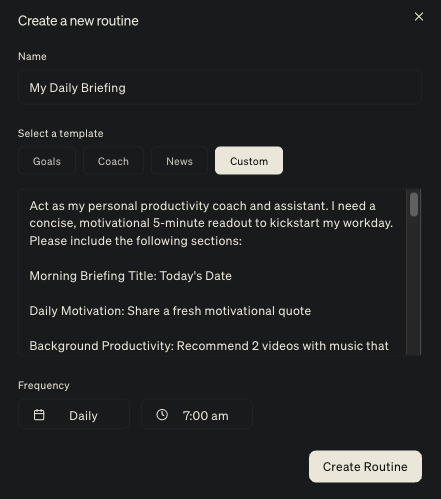
Frequency: Select when the routine should run.
Select daily, weekly, or monthly
Choose the specific time
Step 4: Save your Routine
Click the Create Routine button.
You're all set!
It takes a few minutes for the routine to run, but each time you create or edit a routine, it'll immediately produce an output.
Managing your Routines
Once you've created a few Routines, you can easily manage them from the main Routines dashboard. This is your central hub for viewing and controlling all of your automations. You can quickly filter the Routines by Daily, Weekly, or Monthly frequency settings.
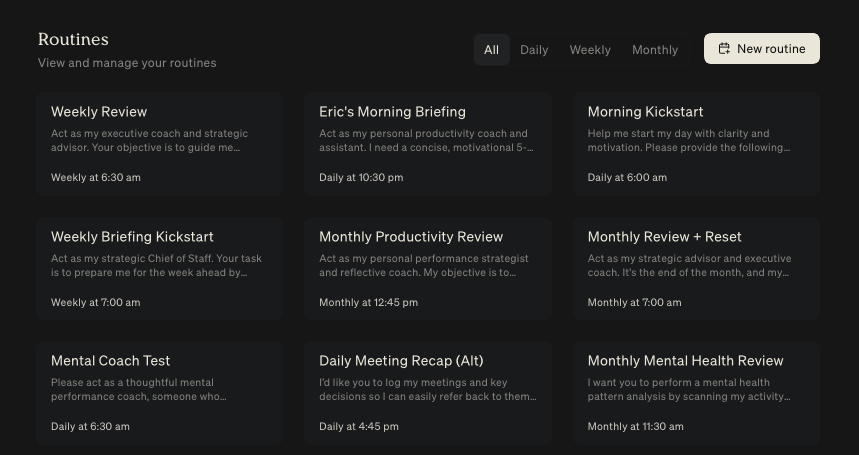
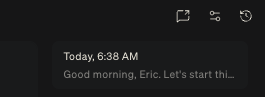
When viewing a specific Routine, you can edit it via the options on the top right side. You'll see options to Send it to Chat, Configure and Edit, and see a history of outputs.
Next steps
You're now ready to build your own suite of personal automations. The best way to start is to think about the questions you ask yourself or Littlebird every single day or week. Is there a report you build manually? A set of websites you check for updates? Those are perfect candidates for your next Routine.
As you get more comfortable with Routines, you can make them even more powerful by connecting Littlebird to your other applications.
Feel free to access our Library of Example Routines: