
Basics and navigation
Welcome to Littlebird: Your personal AI assistant
This short guide will walk you through the basics of navigating the app and understanding how its core features work together.
Getting around: The left navigation pane
When you open the Littlebird app, you'll see a navigation pane on the left side. This is your command center for accessing Littlebird's key features.
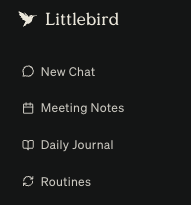
Here’s a quick tour:
Chats: Talk to Littlebird directly to ask questions, summarize work, or draft content
Meeting Notes: Access your recorded meeting notes, summaries, and transcripts
Daily Journal: Get an automated daily summary of your activities
Routines: Automate recurring prompts or tasks on a schedule you set
How your context is used
An important concept to understand is that each module in Littlebird operates independently in terms of context. This is designed to keep your interactions focused and relevant.
For example:
You CANNOT change Littlebird's settings via Chat commands
You cannot instruct Littlebird to exclude certain applications or request that it change your password from the Chat. These functions must be accessed via the Settings page
The content of your Chats with Littlebird is kept within the Chat thread. It does not influence or get pulled into your automated Daily Journal
If you tell Littlebird in one chat, "My favorite color is green," and open a new chat and ask what your favorite color is, there's a chance Littlebird will not know. However, if you say, "Please remember my favorite color is green," Littlebird will know to update its memory
You can access Littlebird's memory in Settings>Chat>Chat Notes
Your Journals are generated based on the general context Littlebird collects from your on-screen activity throughout the day, not from specific queries you make in Chat
This separation ensures that your private conversations in Chat remain just that, while your journal updates provide an automated reflection of your daily work and activities
Customizing your experience
The Settings pane (accessible by clicking on your name in the bottom left of the screen) is where you can fine-tune Littlebird to fit your needs. Here are the most important settings to know:
Context Collection: This is where you can view the applications from which Littlebird is learning. Crucially, you can add applications to an exclusion list if there's anything you'd prefer Littlebird not to see
Danger Zone: This section gives you full control over your data. You can delete your entire history, or just the last hour or day of collected context
Chat settings: You can tailor Littlebird's personality and response style here. This is a powerful way to make our interactions more effective for you
Chat Notes: You can also add things to Littlebird's memory if you want it to reference them across all Chats
Example: Customizing Chat with a prompt
Let's say you want me to always be concise and focus on actionable steps. You could write a prompt like:
Always respond to me as a high-level executive assistant. Keep your answers brief, professional, and focused on outcomes. End your responses with a list of clear, numbered action items.
Once saved, I will adopt this persona in all our future chats, making me a more effective tool for your specific workflow.
Diving deeper: Core features
1. Chat: Your conversational interface
Use Chat to ask Littlebird anything. It can pull from the context of what you've viewed on your screen or search the web for general knowledge.
How to use it: Simply type your question. For example, "What were the main takeaways from the project meeting notes I was just looking at?" or "Draft an email to the team summarizing my progress today."
Best practice: The more context you provide in your query, the better Littlebird's response will be. If you want it to search within a specific app, mention it (e.g., "Find my conversation with Jane on Slack from yesterday").
Help us improve: If you're ever dissatisfied with an output, please select the Thumbs Down Icon and let us know what you were expecting vs. what was delivered. This directly goes to our team, enabling us to quickly address and resolve the issue.
2. Routines: Automate your insights
Routines are scheduled prompts that run automatically. Think of them as recurring check-ins or reports you design yourself.
How to use it: Go to the Routines section and create a new Routine. You'll write a prompt (just like in Chat) and set a frequency (e.g. daily at 9 am or weekly on Fridays).
Example Routine: To track your productivity, you could set up a weekly Routine with the prompt:
Summarize my main activities this week and identify my most productive time blocks.Every week, Littlebird will automatically deliver this report to you.
3. Daily Journals: Your automated daily log
Without any effort on your part, Littlebird creates a journal entry for you every day. This log provides a summary of your day, including insights into your work, productivity, and focus.
How to use it: Simply navigate to the Daily Journals section to view today's entry or look back at previous days. It’s a perfect way to get a high-level overview of what you accomplished.
Privacy: Journal entries are completely private and are generated based on your overall activity, separate from your chats.